

Coin Game
Lesson 4: Move a player
Move a player inside the canvas.
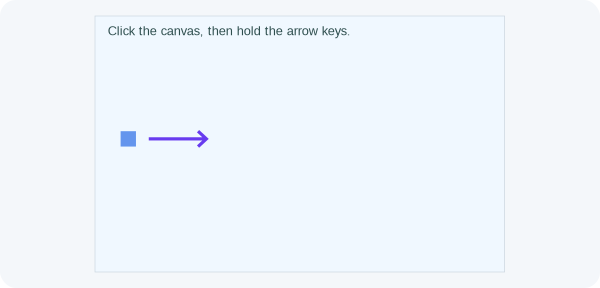
1. Create your project
In Zero, sign in to GitHub and complete access setup if needed. On the Start Page, choose:
Project → New
Name your project (for example, zero-coin-game) and choose a clone location. Zero creates your public repository and opens its clone.
2. Prepare Main.java
Open java → Main.java, replace its contents with this game starting file, and save it:
import zero.GameApp;

public class Main extends GameApp {
    @Override public void settings() {
        padding(20);
        size(640, 400);
    }

    @Override public void setup() {
        // Create your game objects here.
    }

    @Override public void update(double seconds) {
        // Update your objects here.
    }

    @Override public void draw() {
        // Draw your game here.
    }

    public static void main(String[] args) { launch(args); }
}
This Main.java has empty setup(), update(double seconds) and draw() methods. Keep this folder for lessons 5 and 10–12; there is no new game download for the next lesson.
3. Write Player.java
In Project Explorer, right-click java and choose:
New class…
Name the class Player. When Player.java opens, select all the text, paste the complete code block below, and save the file.
import zero.Color;
import zero.GameApp;

public class Player {
    private double x;
    private double y;
    private final double size = 24;
    private final double speed = 180;

    public Player(double startX, double startY) {
        x = startX;
        y = startY;
    }

    public void update(int horizontal, int vertical, double seconds,
                       double canvasWidth, double canvasHeight) {
        x += horizontal * speed * seconds;
        y += vertical * speed * seconds;
        x = Math.max(0, Math.min(x, canvasWidth - size));
        y = Math.max(0, Math.min(y, canvasHeight - size));
    }

    public void draw(GameApp app) {
        app.fill(Color.rgb(100, 149, 237));
        app.rect(x, y, size, size);
    }
}
Player owns its position. Main decides when to update and draw it. The Math.max/Math.min lines keep the whole square on screen. x and y are its top-left corner. At 180 pixels per second, a 0.05-second update moves 9 pixels. Try changing the player's color or speed.
4. Add imports and the player field
In Main.java, add the Key and Color imports; replace the matching lines with the copied code:
import zero.Key;
import zero.Color;
import zero.GameApp;
Key names the four arrow keys. Color.rgb(red, green, blue) mixes amounts from 0 to 255; Color.BLUE and Color.GOLD are ready-made colours. Add the player field to Main; replace the matching lines with the copied code:
public class Main extends GameApp {
    private Player player;
5. Update and draw the player
In Main.java, replace the three starter methods with the copied code:
    @Override public void setup() {
        // Create your game objects here.
        player = new Player(40, 180);
    }

    @Override public void update(double seconds) {
        // Update your objects here.
        int horizontal = 0;
        int vertical = 0;
        if (keyDown(Key.LEFT)) horizontal--;
        if (keyDown(Key.RIGHT)) horizontal++;
        if (keyDown(Key.UP)) vertical--;
        if (keyDown(Key.DOWN)) vertical++;
        player.update(horizontal, vertical, seconds, width(), height());
    }

    @Override public void draw() {
        // Draw your game here.
        background(Color.rgb(240, 248, 255));
        fill(Color.rgb(47, 79, 79));
        textSize(20);
        text("Click the canvas, then hold the arrow keys.", 20, 30);
        player.draw(this);
    }
Keep the starter's settings() and main(...).
Frames, input and canvas
setup() creates the player once. Each frame, update(seconds) moves it and draw() paints it. Zero supplies seconds: the time since the previous frame, in seconds. Game developers often call this delta time. Multiplying speed by seconds keeps movement approximately consistent at different frame rates. Canvas coordinates start at the top left, and background(...) clears the canvas each frame.
How Player uses the app to draw
player.draw(this) calls Player's draw method and passes it the running app.
Inside Player, app.fill(...) chooses the colour and app.rect(...) paints the
square on the canvas. Creating a Player alone does not draw it.
6. Run and check movement
Click Run, click the canvas, then hold and release an arrow key. The square should move while held and stop when released. Try every edge, Right + Up, Left + Right, and releasing all keys. After switching windows, click the canvas again for keyboard focus.
In Player.java, try a larger square and slower speed. If you changed these values earlier, adapt the matching lines to your version:
    private final double size = 24;
    private final double size = 40;
    private final double speed = 180;
    private final double speed = 90;
Run again and check the speed and edges. Restore the original values before lesson 5:
    private final double size = 40;
    private final double size = 24;
    private final double speed = 90;
    private final double speed = 180;
If you remove only player.update(...), the square still draws but cannot move. Explain why.
After writing your own code, compare with checkpoint 8's Main.java and Player.java. Continue editing this Coin game folder in lesson 5.
You got your player moving!