

Animated Pet
Lesson 6: Show your pet
Start your pet game and draw a picture.
1. Start your own project
In Zero, sign in to GitHub and complete access setup if needed. On the Start Page, choose:
Project → New
Name your project (for example, zero-pet) and choose a clone location. Zero creates your own repository and opens its clone. After setup, editing and local Run work offline; GitHub actions and publishing need a connection. Submit your repository link separately in Pika if assigned.
2. Download the pet assets
Download the Pet assets ZIP and unzip it. Inside the unzipped pet folder, find bird-flap-sheet.png and chime.wav.
The bird and chime are Zero assets supplied under the project license. For your own replacements, use a PNG and a short PCM WAV and retain permission and attribution.
3. Add the assets to your project
In Zero's file tree, right-click resources and choose:
New folder…
Name the folder pet.
4. Import the assets
Right-click the new pet folder and choose:
Import assets…
Select both files from the unzipped pet folder. Check that bird-flap-sheet.png and chime.wav appear in resources/pet/. The leading / in /pet/bird-flap-sheet.png means the root of the project's resources, not your computer.
Start on main. The checkpoints here are complete reference files: type the changes yourself, or compare them when stuck. Java files go in java/, not resources. After changing code, save and choose Run; stop the app before changing and running again.
5. Show your pet
Open java/Main.java, select its entire contents, and replace them with the complete file below. settings sets canvas size, setup loads the picture once, and draw paints the background and picture each frame. 280, 150 is the top-left position; 80, 64 is its drawn size. The sheet has four poses; imageRegion selects the first pose.
import zero.Color;
import zero.GameApp;
import zero.ImageRegion;

public class Main extends GameApp {
    private ImageRegion petImage;

    @Override public void settings() { size(640, 400); }
    @Override public void setup() {
        var sheet = loadImage("/pet/bird-flap-sheet.png");
        petImage = imageRegion(sheet, 0, 0, 701, 561);
    }

    @Override public void draw() {
        background(Color.rgb(240, 248, 255));
        image(petImage, 280, 150, 80, 64);
    }

    public static void main(String[] args) { launch(args); }
}
6. Run your pet
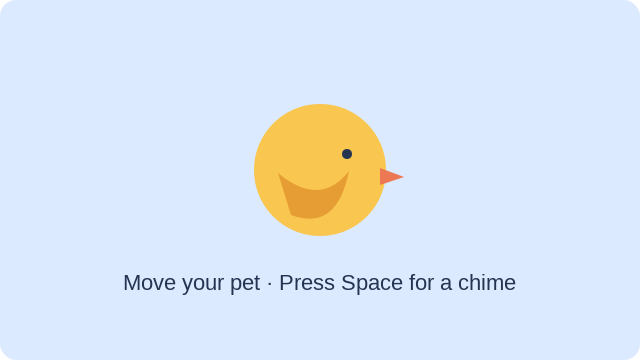
Save the file, then choose Run. You should see a bird. Try another background color or size. If the resource cannot load, check spelling, capitalization and the resource folder, then stop and run again.
You showed your pet!