

Coin Game
Lesson 12: Add artwork and sound
Use what you learned with the Pet game to add artwork and sound to Coin game.
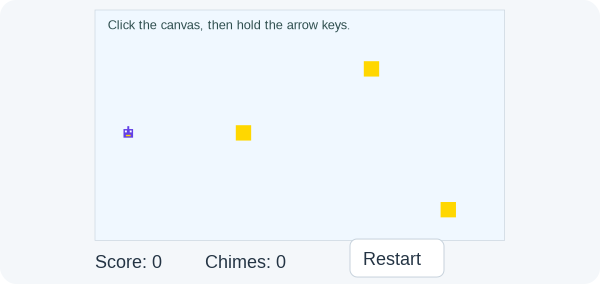
Continue the same Coin repository from lesson 11.
1. Start an artwork and sound branch
Start from the tested main at the end of lesson 11. In the Project panel, click main, then choose:
New branch…
Enter coin-media and press Enter. Check that coin-media is selected.
2. Choose your assets
Use your own artwork and sound, or download and unzip the optional game assets ZIP, which includes player.png and chime.wav. Use artwork and audio you created or have permission to redistribute, and include any required licence information.
In Zero's Project Explorer, right-click resources and choose:
New folder…
Name the folder media-demo. Right-click media-demo and choose:
Import assets…
Select the image you want from the unzipped folder. You will import the sound in step 4.
3. Add and test the artwork
Decide where to load and draw your image. Use Show your pet as a reference. Run the game. Move the player, collect a coin and try Restart. Check that the artwork stays visible and that you can still read the score.
Save your files on coin-media, enter Add Coin game artwork, and choose:
Commit
4. Add and test the collection sound
Right-click media-demo, choose Import assets…, and select the sound. Use Animate your pet as a reference for loading and playing it. Play it where the game awards a point for a newly collected coin. Run and stay on a collected coin. Check that it scores and plays the sound once. Win, then Restart and play again. Keep the game understandable with the sound muted.
Save your files, enter Play a sound when a coin is collected, and choose:
Commit
5. Sync, merge and test on main
Stop the game. With coin-media selected, choose:
Sync
Wait for Sync to finish. Choose Merge beside the branch name and confirm Merge coin-media into main?
Confirm main is selected. Run the merged game, collect a coin and try Restart. Check that both the artwork and sound still work.
Stop the game. In the Command Palette, choose Zero: Export for Web, then
choose Preview export in Zero. Collect a coin in the browser and check
the artwork, sound and Restart.
6. Publish the tested game
Stop the app and open the Run dropdown, then choose:
Publish & open app
Follow the prompts, then check the artwork, sound, scoring and Restart in the published app.
Return to the lesson index.
Keep experimenting with your game!